Machine profile: your laser machine, saved once and used everywhere
Machine profile in SBM Laser Help stores your laser machines: type, power, gases, laser source, cutting head, chiller, controller and software. The active machine pre-selects power and gas in parameter tables, error codes and photo analysis. It works in the Android and iOS apps, the web app and the Telegram bot with one account. Machine profiles start on the Operator plan; Free keeps your last 3 answers.
- Where
- Android, iOS, web app, Telegram bot
- Free plan
- No machine profile, last 3 answers
- Paid plans
- 1 machine on Operator, 10 on Engineer and Professional
- Languages
- 12
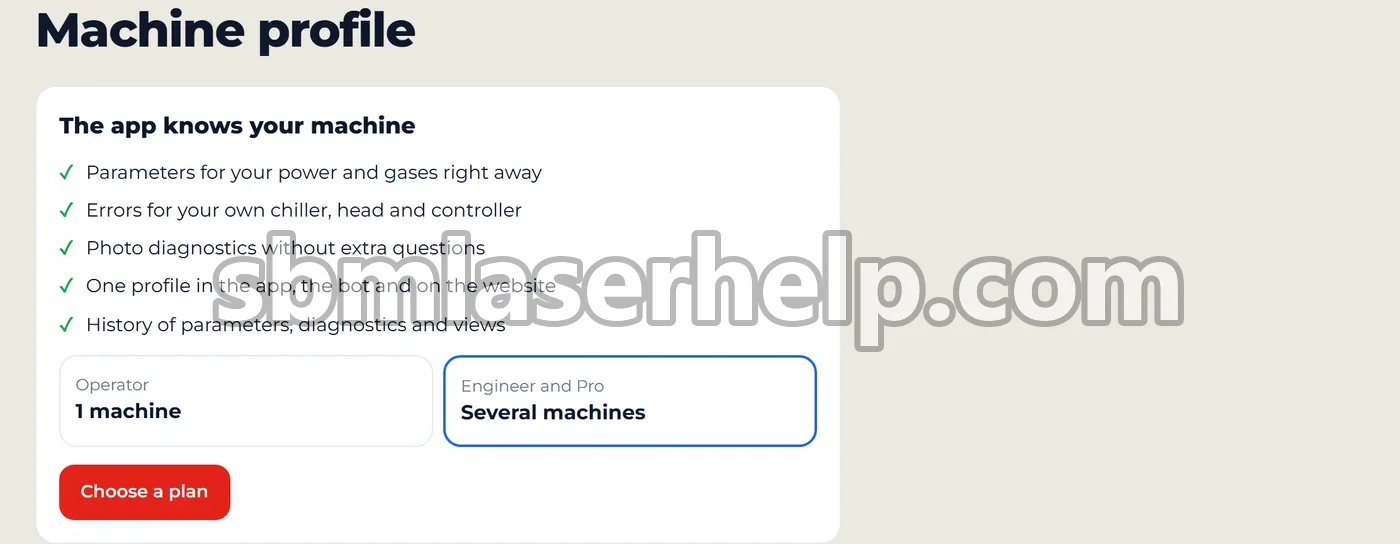
What the machine profile does
All your machines in one list
Add each machine with its type (sheet cutter, tube cutter, sheet + tube, beam cutter, welding or cleaning), power in kW and the gases it runs: oxygen, nitrogen, compressed air or argon.
Components by brand and model
Pick the laser source, cutting head, chiller, controller and control software from a catalog by brand or model. If your model is not listed, type it as it is. Servo drives and fume extraction are optional.
Model from a nameplate photo
Tap the camera next to a component and take a photo of its nameplate: the app reads the model and fills it in. If the photo cannot be read, you type the model by hand.
Parameters for your power and gas
The cutting, piercing, tube, bevel, welding and cleaning tables open with your machine's power already selected, and the gas is picked for the material from the gases your machine has. If there is no data for your power, you see all powers.
Error codes and photo analysis that know your equipment
Error codes of your own laser source, head, chiller and controller come first, and cut photo analysis takes your machine into account, so it asks fewer questions.
Saved regimes and one history
After a regime, tap Save to machine profile to keep it with the machine. The History tab collects parameters, photo analyses, error lookups and searches from the app, the web app and the bot in one feed.
How to set up your machine profile
- Open Machine profileIn the app or at sbmlaserhelp.com/app/machines/, open Machine profile and tap Add machine. In the Telegram bot the same page opens inside Telegram.
- Fill in the machine cardChoose Machine type and Power, tick the Gases on the machine, then select the laser source, cutting head, chiller, controller and control software. Required fields are marked with a dot.
- Read the nameplate if you likeUse Read model from nameplate (the camera icon) instead of searching the catalog, then tap Save machine.
- Make the right machine activeWith several machines, tap Make active on the one you work on now. The tables show it in a strip on top, with Change to switch.
- Save regimes and check the historyAfter you find a cutting, piercing, tube or bevel regime, tap Save to machine profile and pick the machine. Open the History tab and filter by machine, No machine or Saved.
What you can store for each machine
- Machine type: sheet cutter, tube cutter, sheet + tube, beam cutter, welding, cleaning.
- Power in kW, picked from the powers available for that type.
- Gases on the machine: oxygen O2, nitrogen N2, air from a compressor, argon Ar. Several can be ticked.
- Equipment: laser source, cutting head, chiller, controller (CNC board) and control software, each by brand and model.
- More, optional: servo drives and fume extraction.
A machine can also be created straight from a regime: in the Save to machine profile window choose New machine from these parameters, and the type, power and gas are filled in for you. The rest can be added later.
One profile in the app, the web app and the bot
The profile belongs to your account, not to a device. A machine added on the phone is already active in the web app and in the Telegram bot, and every request lands in the same history: cutting and piercing parameters, tube, bevel, welding and cleaning tables, error codes, reference guide pages, smart search and photo analysis. Each entry is tagged with the machine it was made for.
On the Free plan the history shows your last 3 answers; paid plans keep the full history.
Machine profile limits by plan
| Tool | Free | Operator | Engineer | Professional |
|---|---|---|---|---|
| Machine profiles | — | 1 | 10 | 10 |
| Answer history | Last 3 | Full | Full | Full |
Limits renew every 30 days from signup or renewal. Parameter tables, photo analysis and search keep their own quotas, see pricing.
Prices: Operator $3.99, Engineer $7.99, Professional $14.99 a month. Compare plans.
Questions and answers
- Is there an app that saves my laser cutting machine settings?
- Yes, the SBM Laser Help app has a machine profile. You save the machine type, power, gases, laser source, cutting head, chiller, controller and software once, and the parameter tables, error codes and photo analysis start from that machine. It works on Android, iOS, the web and in the Telegram bot.
- Is the machine profile free?
- No, the machine profile is part of the paid plans. Operator ($3.99 a month) stores 1 machine, Engineer and Professional store up to 10. The Free plan keeps a history of your last 3 answers. Compare plans.
- Can I add several laser machines to one account?
- Yes, up to 10 machines on the Engineer and Professional plans. You switch between them with Make active, and the history can be filtered by machine.
- How does the app pick the laser power and gas for my machine?
- It takes them from the active machine. The cutting table opens with your power already selected, and the gas is chosen for the material from the gases your machine has, for example nitrogen for stainless steel. If the table has no rows for your power, you see all powers; if none of your gases fits, the app warns you.
- What if my laser source or controller is not in the list?
- Tap My model isn't listed and type the model as it is, then pick the brand. You can also take a photo of the nameplate and the app reads the model for you.
- Does the machine profile work in the Telegram bot?
- Yes. The bot opens the same machine profile page inside Telegram, and the profile is shared with the Android and iOS apps and the web app under one account.
- Do I need an SBM machine to use the machine profile?
- No. You can add any fiber laser machine, whatever the brand of the machine, laser source, head, chiller or controller.